


Get Ready with your eSIM
Follow this simple steps to get started before your trip
List of Borderlands 5G eSIM compatible devices

Apple iOS
Works for iPhone 12 and above
Android
Works on most Android 14 and above
Samsung
Works on most Android 14 and above
Other Android Users
Works on most Android 14 and above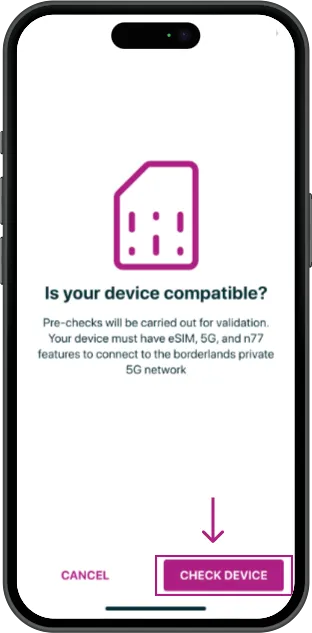
Check Device
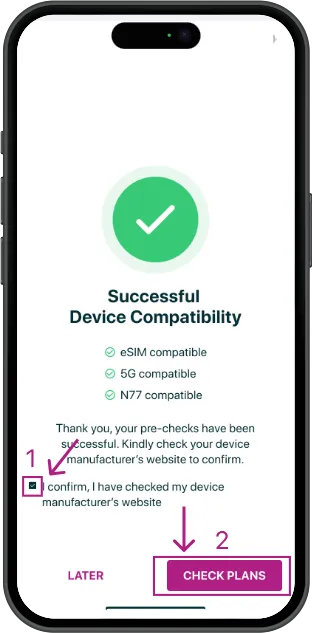
Device is supported. Enter Device label to proceed
See list of network compatible devices here
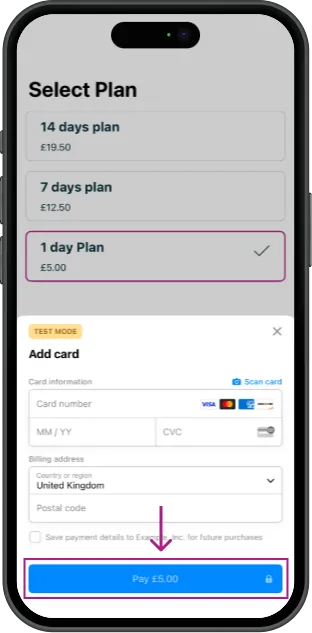
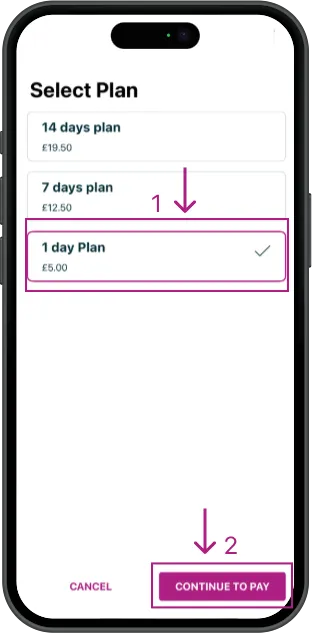
Continue to Pay
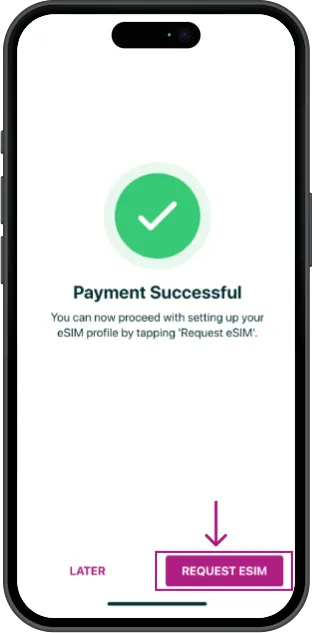
Make Payment
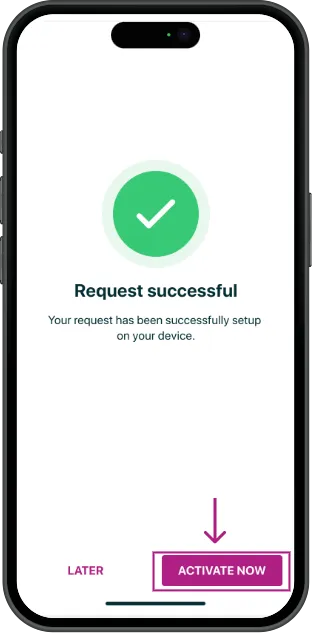
Request Sim
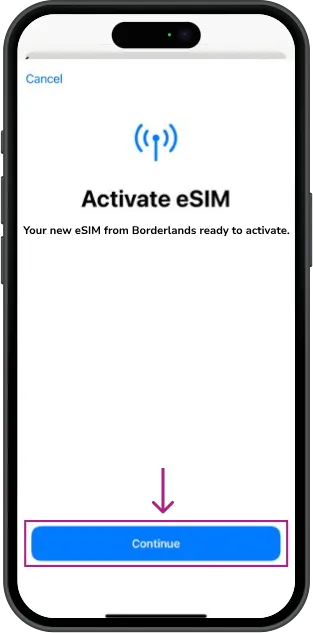
Activate Sim
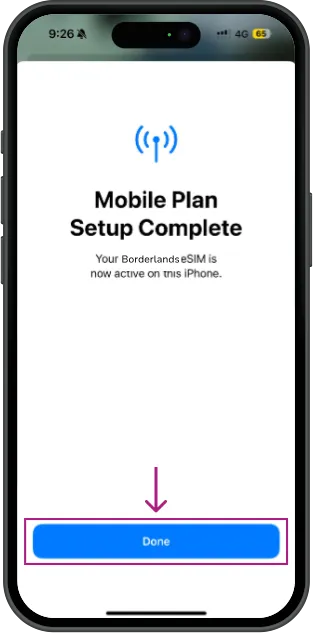
Click to Continue
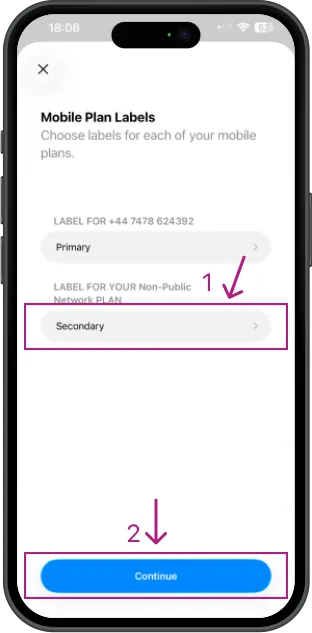
Tap Done
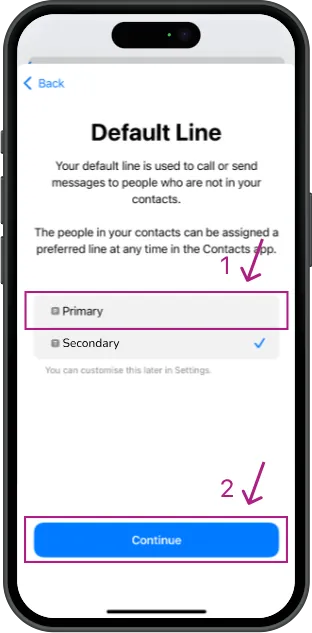
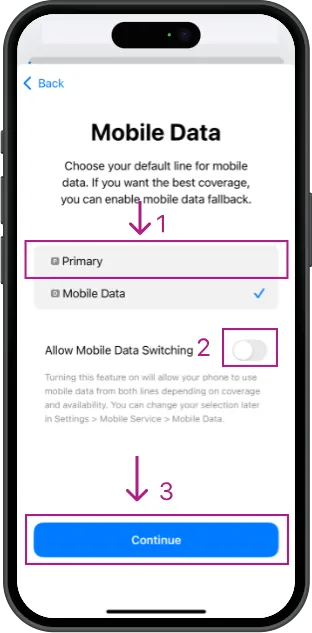
Select secondary and click continue
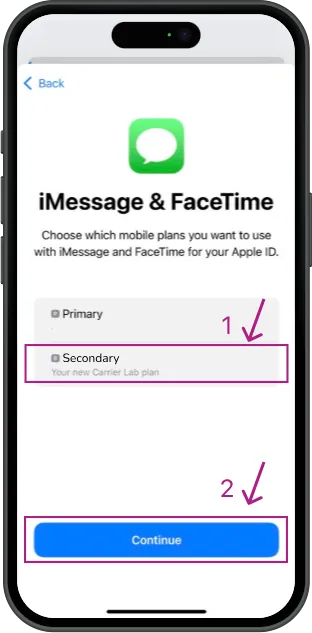
Select the label of the added sim, toggle on data switching and click continue
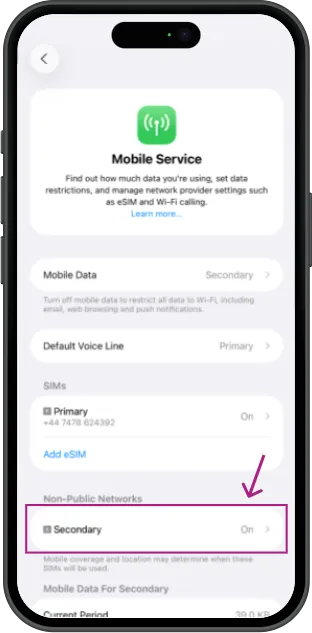
Click on the newly added sim
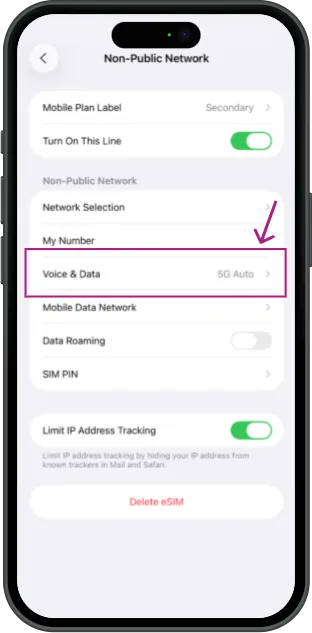
Select Voice & Data
Toggle on 5G standalone
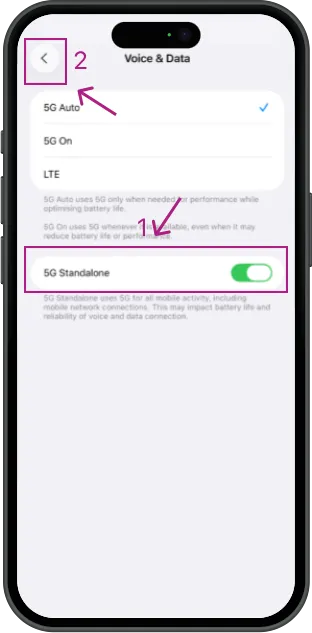
Connected to the Network
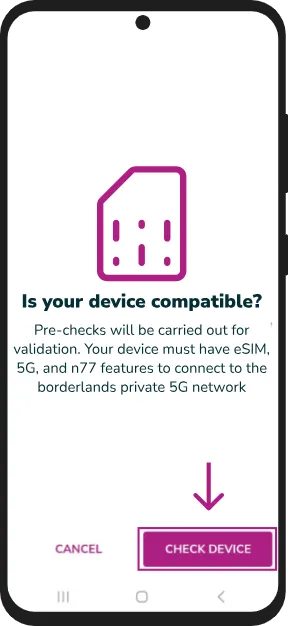
Add eSIM
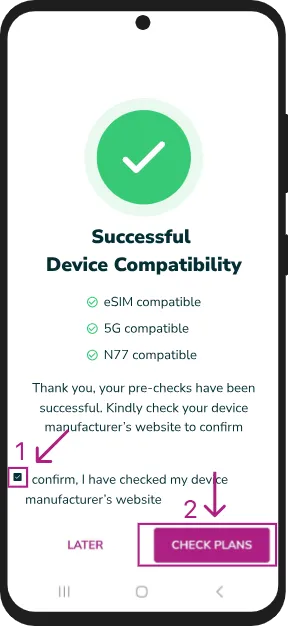
Check Device
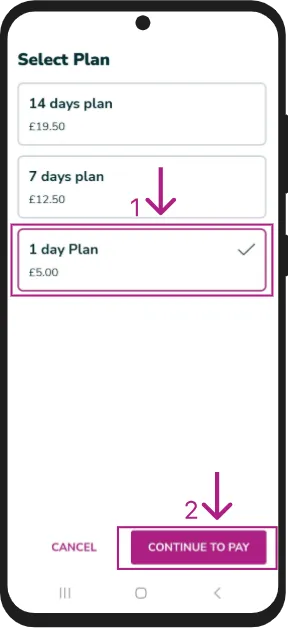
Device is supported. Enter Device label to proceed
See list of network compatible devices here
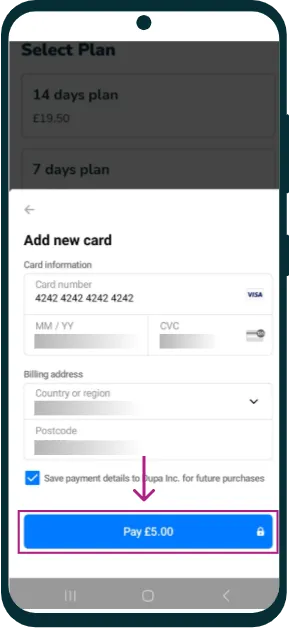
Continue to Pay
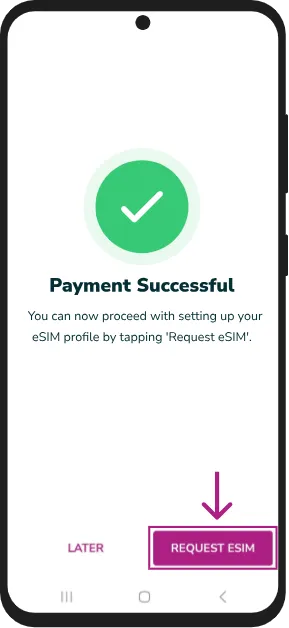
Make Payment
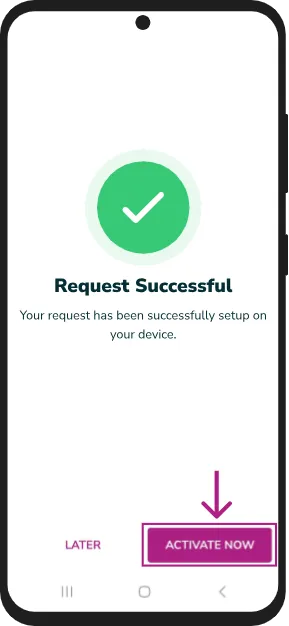
Request SIM
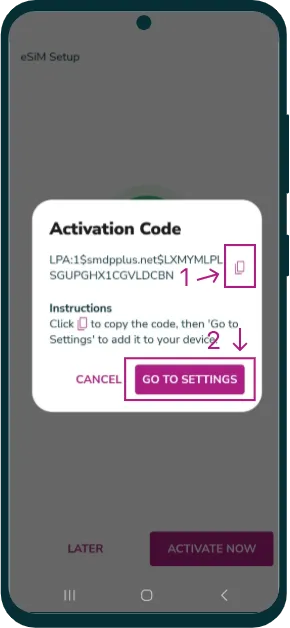
Activate SIM
Copy Activation Code
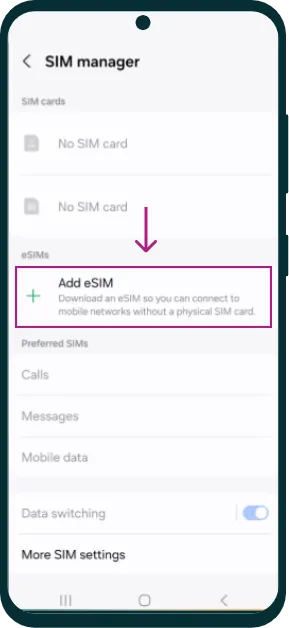
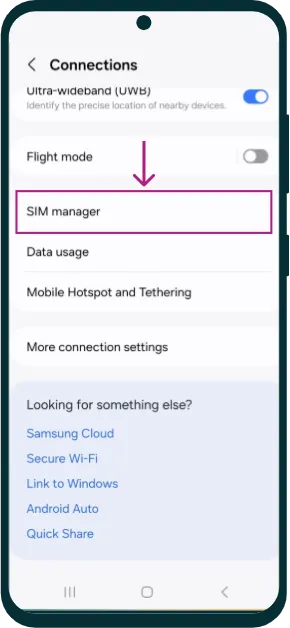
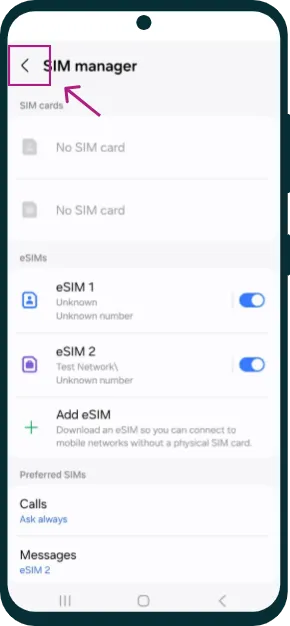
Tap on SIM Manager
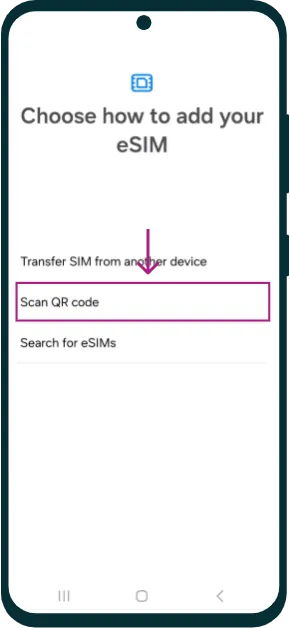
Add eSIM
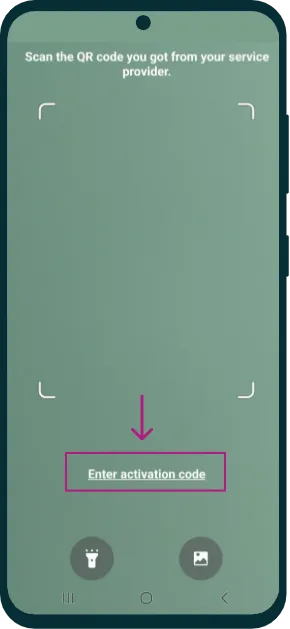
Tap on Scan QR Code
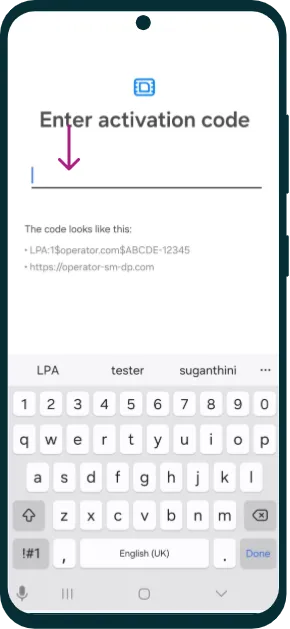
Click on Activation Code
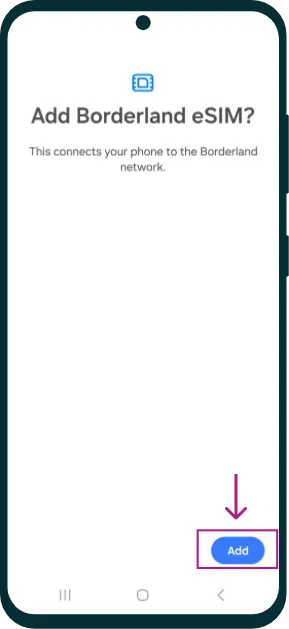
Enter Activation Code
Add eSIM
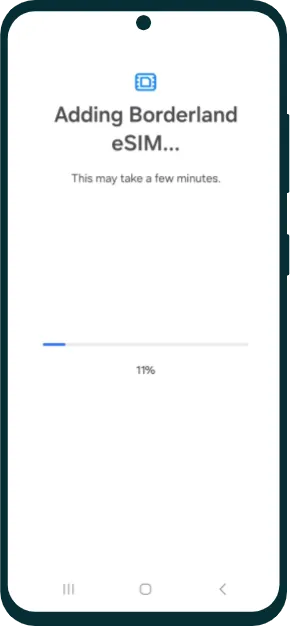
Adding eSIM Progress
This might take a few minutes
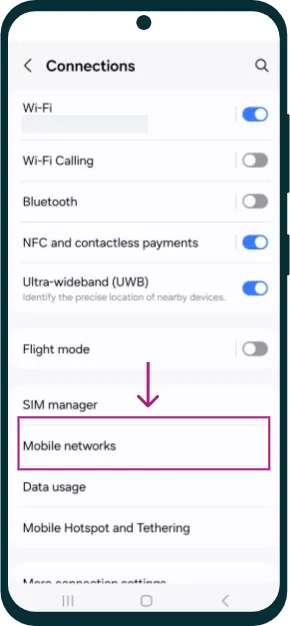
Go to connections page
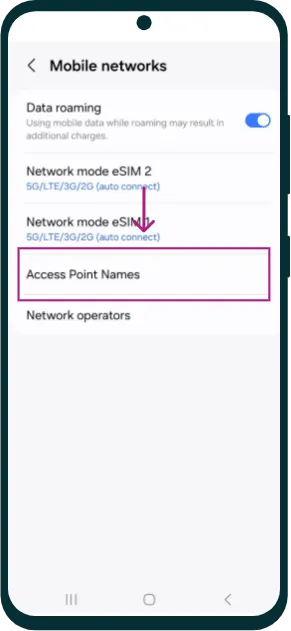
Select Mobile Networks
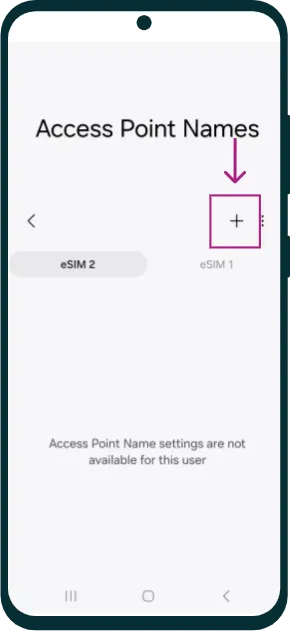
Tap on Access Point Names
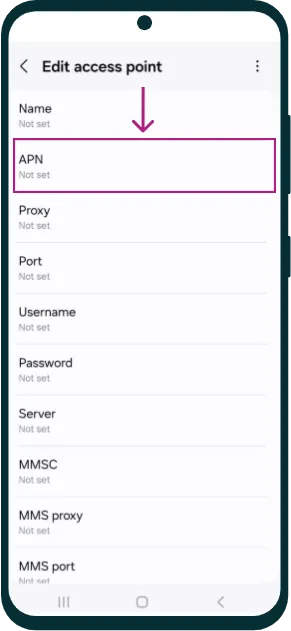
Plus ‘+’ icon takes you to a form page to add APN
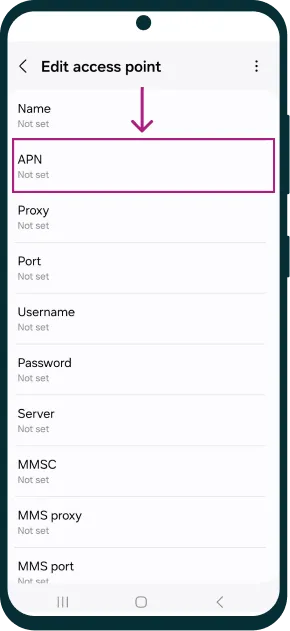
Add APN Number
Add 'B5GIRHME' in the APN Field and you are good to go
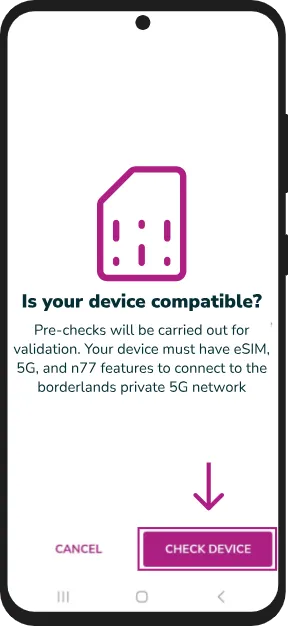
Add eSIM
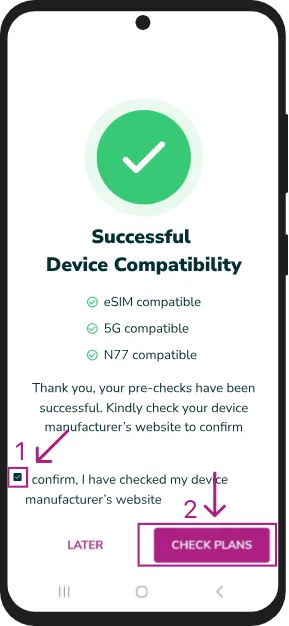
Check Device
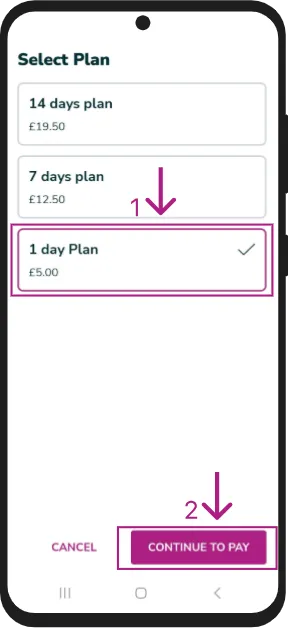
Device is supported. Enter Device label to proceed
See list of network compatible devices here
Continue to Pay
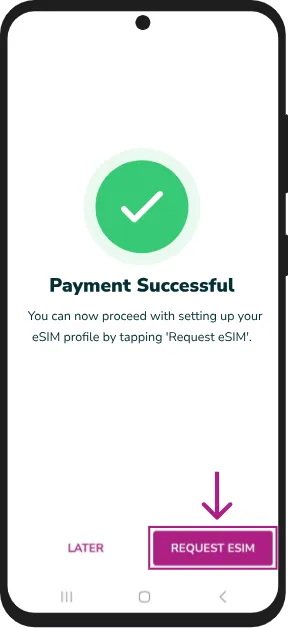
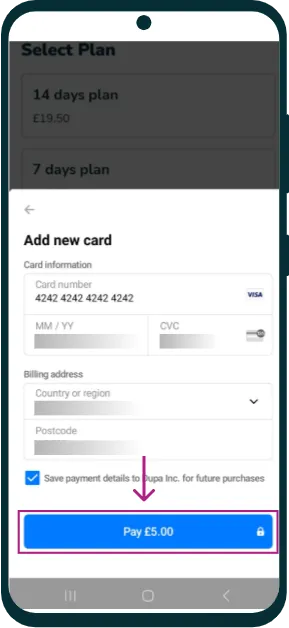
Make Payment
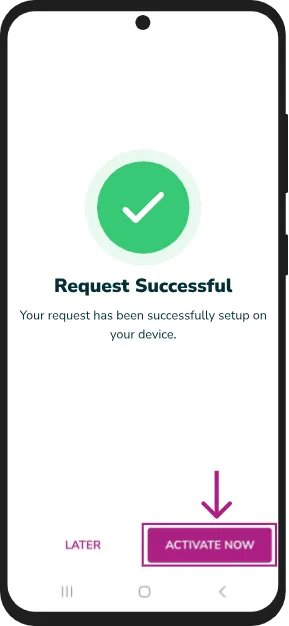
Request SIM
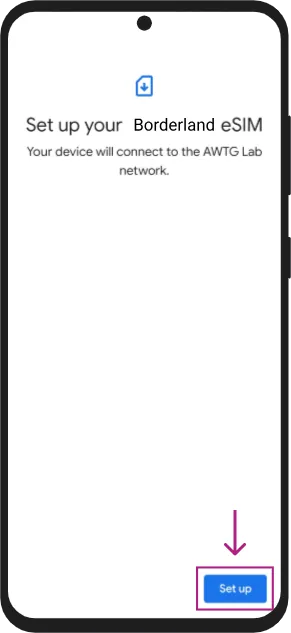
Activate SIM
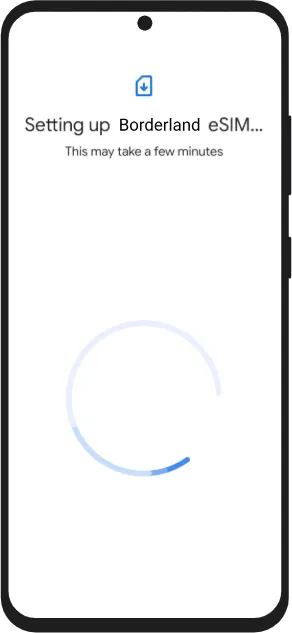
Setup Sim
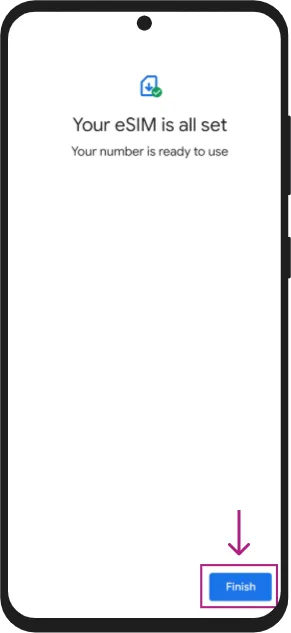
Take few mins process
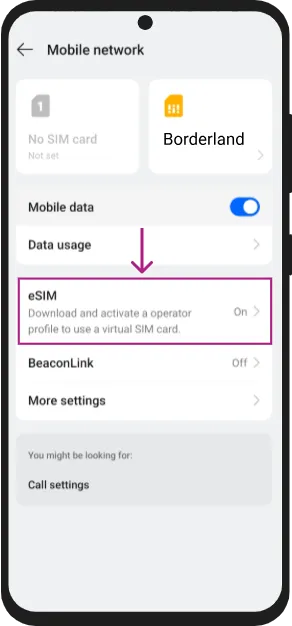
eSIM set confirmation
Go to eSIM
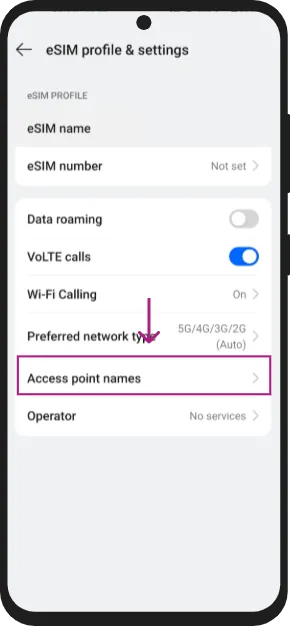
Click Access Point Names
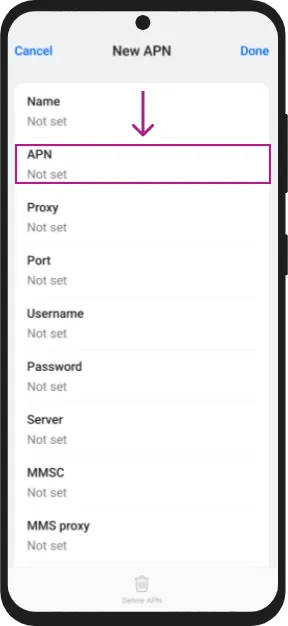
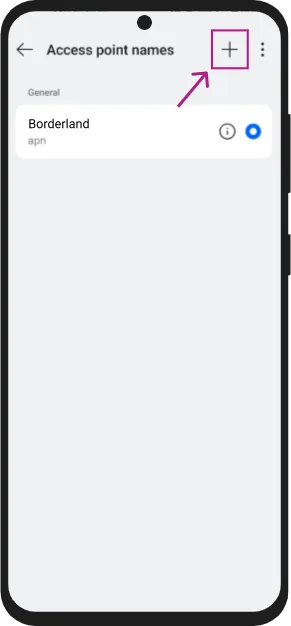
Plus ‘+’ icon takes you to a form page to add APN
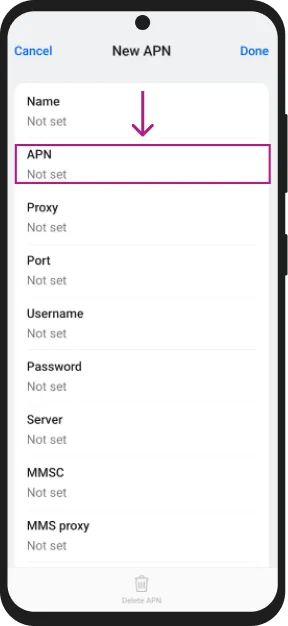
Add APN Number
Add 'B5GIRHME' in the APN Field and you are good to go